
Gavin is the Segment Lead for the Technology Explained, Security, Internet, Streaming, and Entertainment verticals, former co-host on the Really Useful Podcast, and a frequent product reviewer. He has a degree in Contemporary Writing pillaged from the hills of Devon, more than a decade of professional writing experience, and his work has appeared on How-To Geek, Expert Reviews, Trusted Reviews, Online Tech Tips, and Help Desk Geek, among others. Gavin has attended CES, IFA, MWC, and other tech-trade shows to report directly from the floor, racking up hundreds of thousands of steps in the process. He’s reviewed more headphones, earbuds, and mechanical keyboards than he cares to remember, and enjoys copious amounts of tea, board games, and football.
Most folks think that a custom DNS provider is all about those marginal speed gains. In reality, that’s only a snippet of why swapping to an alternative DNS provider is worthwhile.
Your default ISP DNS provider is probably only a few milliseconds slower than a custom option. But your default ISP DNS provider is probably quite basic and doesn’t offer advanced features like tracker and ad blocking, built-in security lists that keep you safe from malware and phishing, or the ability to customize the level of protection per device.
That’s why I’ve switched to NextDNS, which ticks all of those boxes, and better still, is super easy to install across all of your devices.
Why switching your devices to NextDNS is the right move
Simple management

I’ve used quite a few different third-party DNS providers over the years. For a long time, I used Quad9, as do many other members of the MUO team. It’s a fast and secure DNS that has built-in malware and phishing protection, is based in Switzerland for its strong privacy laws, and it supports encrypted DNS to keep your searches safe.
However, as much as I like Quad9 — it’s really set and forget for most folks — I wanted a bit more control over certain devices in my network, particularly my kids, who, at varying ages, have different needs when it comes to parental controls, content blocking, and so on.
Now, let me be clear. DNS is absolutely not a substitute for hands-on checking, parental controls, and so on. But I find that as part of a wider approach to device security, it’s a useful addition. You can’t rely on it, and shouldn’t, but it can help to push some of the internet nasties away from your devices, child or not.
Still, NextDNS is great because it’s fast and provides customizable security options. It has an easy-to-use interface available via web app, Android, iOS, and other platforms, and it makes toggling and customizing restrictions accessible. That latter point is also one of the reasons I often suggest NextDNS to other folks. You don’t really need to be a networking genius to add some extra protection to your devices, although there are caveats to this, which I’ll explain in a moment.

Enabling NextDNS on Android is simple
3 steps is all it takes
Part of what makes NextDNS so wonderful is that it’s really easy to use. That is, the additional customization and filtering options are easy to use, and you can create different profiles that apply to specific devices in your network.
In my case, I’m installing NextDNS on an Android device, so it all starts with the NextDNS Manager app. You should note that the NextDNS Manager isn’t actually an official NextDNS app; it’s a web app that wraps it to make it simple to use the NextDNS web interface. It’s actually really handy, and logs you into the website securely.
You’ll first notice that the status report: your device isn’t currently protected by NextDNS. That’s because your device is likely currently using its default DNS configuration (or another third-party DNS if you’ve changed it previously). NextDNS recommends that Android devices use its Private DNS configuration, which it provides if you scroll down the screen a little.
In the Private DNS configuration steps, you may note what looks like a cryptic six-character string. That’s your device’s unique identifier, and helps to you to manage and identify it in logs through the NextDNS web app. You’ll need this in the next section.
Now, given that every implementation of Android is different, these steps may differ on your specific device. However, the following steps should help you change the DNS configuration on your Android device:
- Head to Settings and search for Private DNS
- Select Private DNS and change the configuration from Auto to Manual
- Next, copy and paste the unique NextDNS hostname into the box. It should save automatically.
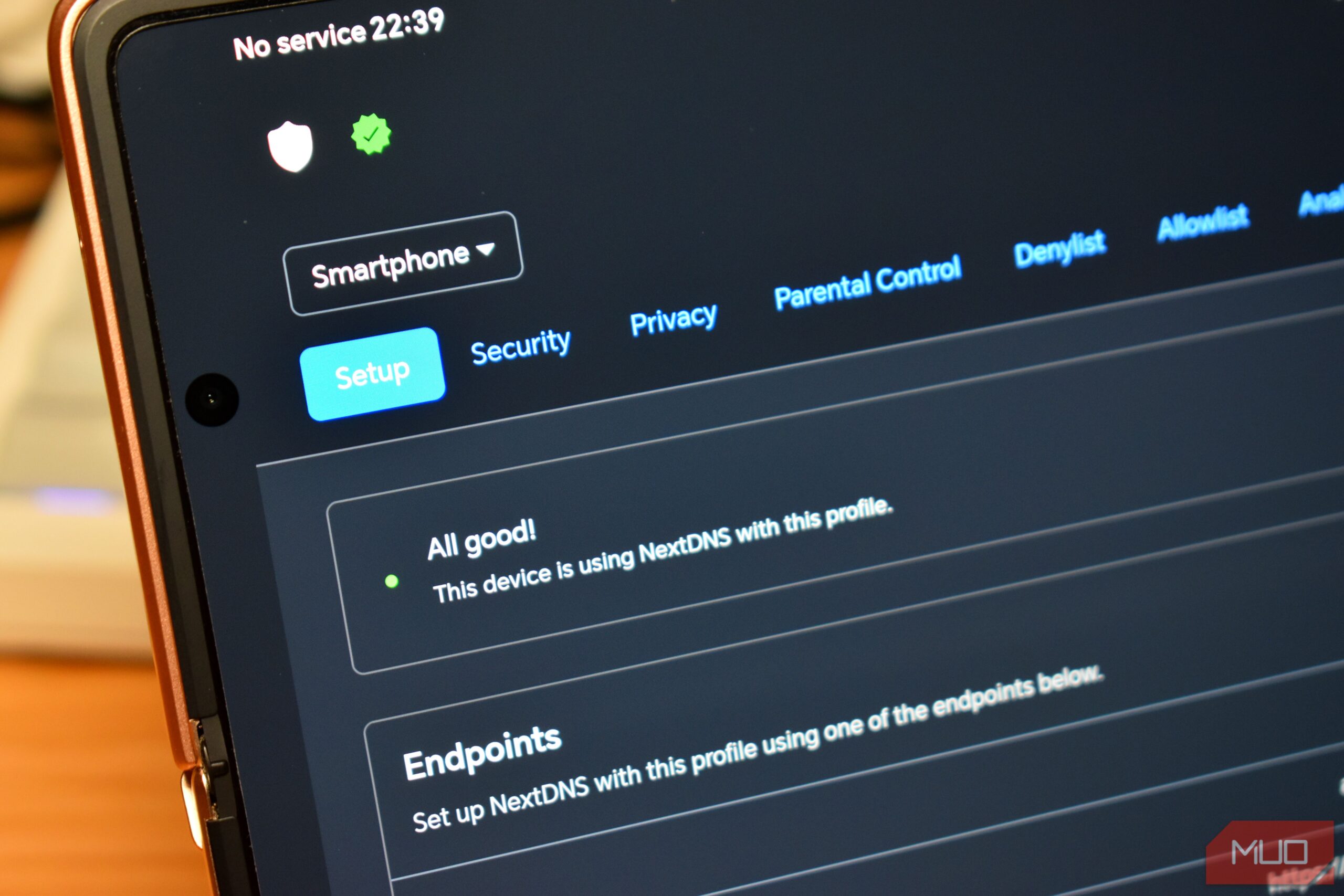
Once you’re done, head back to the NextDNS Manager app. You should see that the app recognizes that you’re all connected with a green icon and the “All good!” message.
Get stuck into NextDNS’ customizable filters and controls
You can control privacy, blocking, and more
The NextDNS Manager app is a like-for-like recreation of the NextDNS web app. You’ll find tabs for Security, Privacy, Parental Control, Analytics, and more across the top menu bar, with each giving you a different range of configuration.
What you do from here depends on your goals. The Privacy tab features handy Blocklists to restrict advertising, and a toggle to Block Disguised Third-Party Trackers, both of which are handy privacy options.
Similarly, the Security tab has an option for Threat Intelligence Feeds that blocks malware, phishing, and more, plus options for Google Safe Browsing, Cryptojacking Protection, and more. Again, handy security options that give your device extra protection, and one of the main reasons it’s worth switching to NextDNS.

NextDNS makes your internet slightly faster and much more private
I’m always keen for super handy fixes like this
The biggest caveat with NextDNS is that it’s not a completely free service. There is a limit on the number of requests you can make per month for free: 300,000. After you hit this limit, the premium features, such as ad-blocking, privacy lists, and similar, are disabled until the next month.
How quickly you hit the limit depends on your activity, how much you’re blocking, filtering, and so on. But if you’re impressed with the service, you can upgrade to unlimited queries for two bucks a month, or 20 for the whole year.
Overall, NextDNS is a great way to bring some extra peace and privacy to your Android device, and it’s well worth the short time it takes to set it up.
About The Author